What's new in Sia Storage 1.15 for iPhone and Android
Share links, a Trash screen, background uploads on Android, and downloads that start sooner.
Sia Storage 1.15 is out for iPhone and Android, the first release since 1.14.1 in August. You can now share files with a link, get back files from the new Trash screen, and on Android keep uploading with the phone locked. Downloads start sooner and take half the disk space they used to, and a long list of fixes makes imports and sync between your devices more reliable.
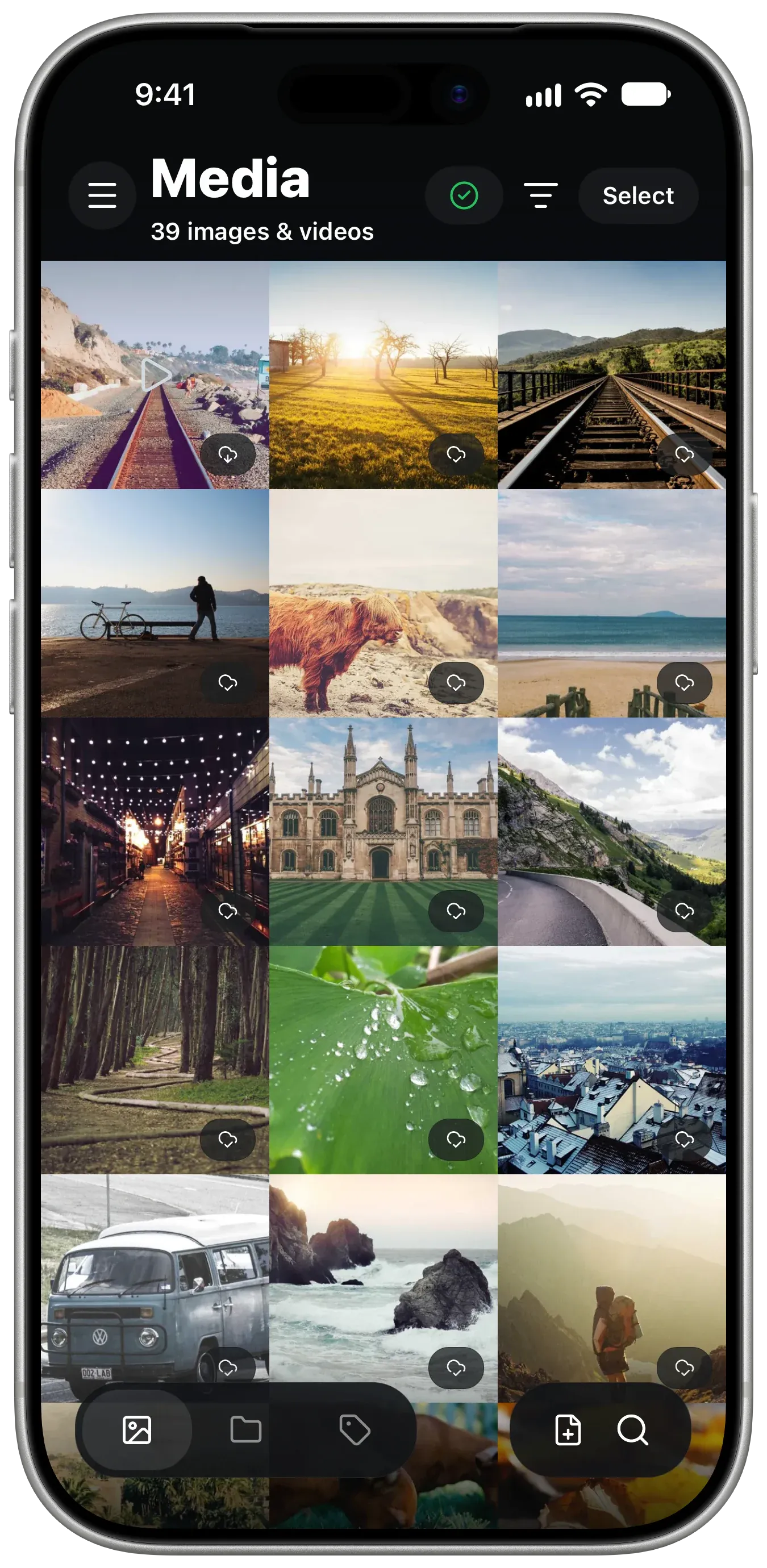
iPhone
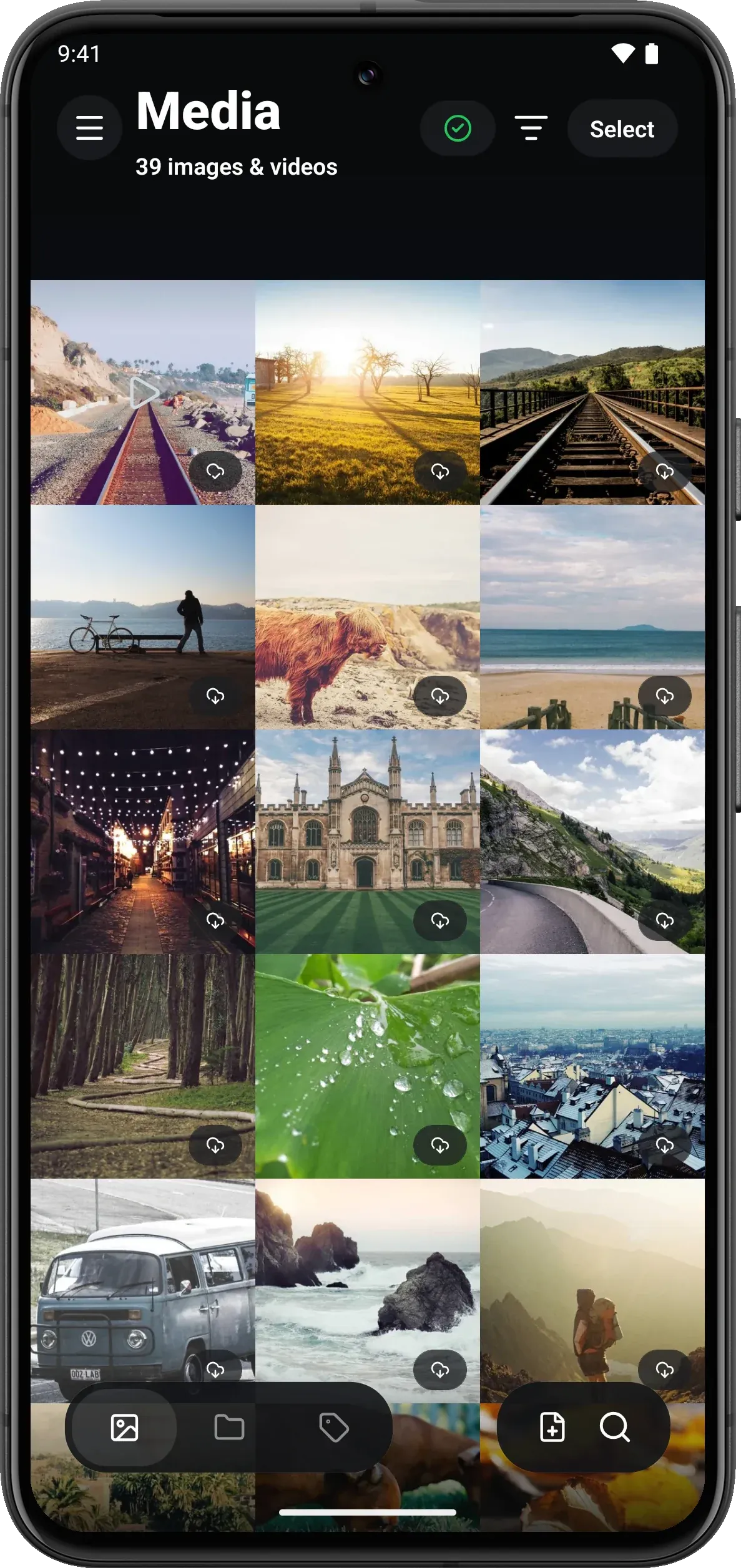
Android
Share files with a link
Share link is in a file's menu, on the share button when you are viewing a file, and in the selection bar when you have several files selected. Pick whether the link shows the files' latest versions or the versions they have now, and whether it lasts a day, a week, 30 days or until you revoke it. Whoever has the link opens it in a browser at share.sia.storage, with no app and no account.
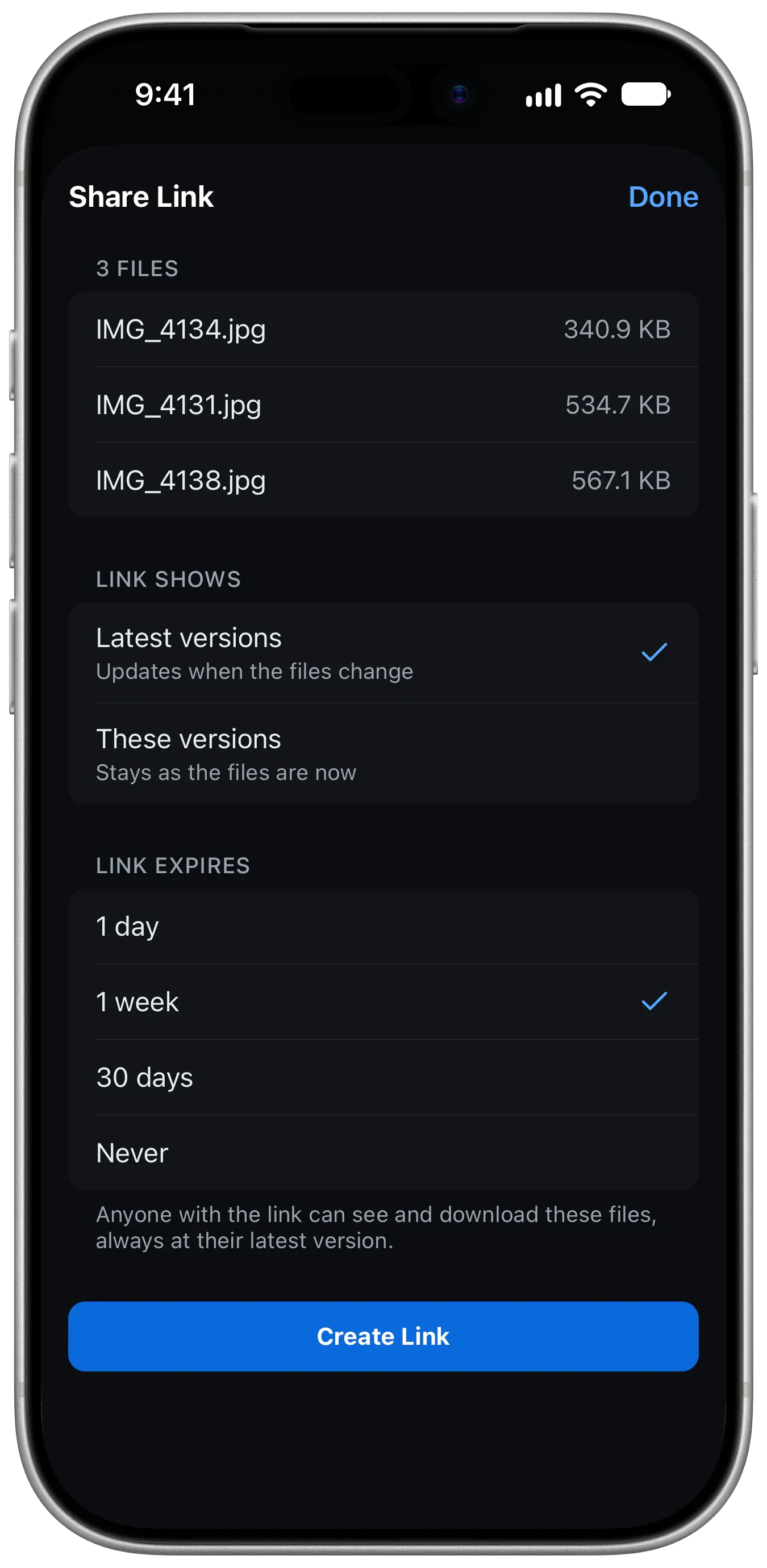
The Share Link sheet on iPhone, for three photos.
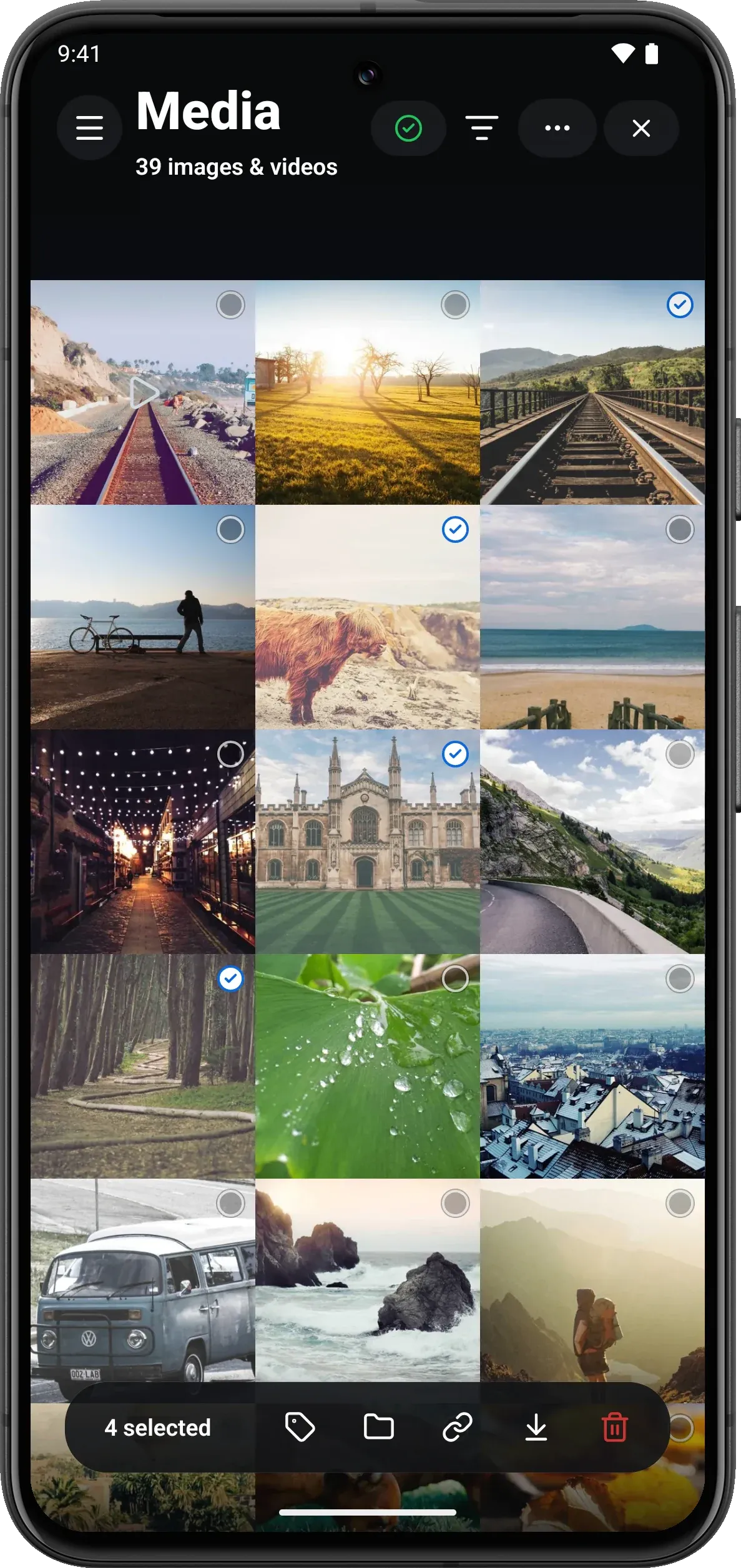
On Android, Share link is the link icon in the selection bar.
Share Links in the menu lists every link on your account, made on any of your devices, where you can copy one again or revoke it. This replaces the old Share link, which made a one-day link to a single file.
Get deleted files back
Trash, a new screen in the menu under Library, lists the files you moved to the trash.
Each one stays there for 30 days, with its older versions, and shows how long it has
left. Put a file back or delete it for good from there. A file restored to a name that another file has taken
since comes back as name (restored).ext.
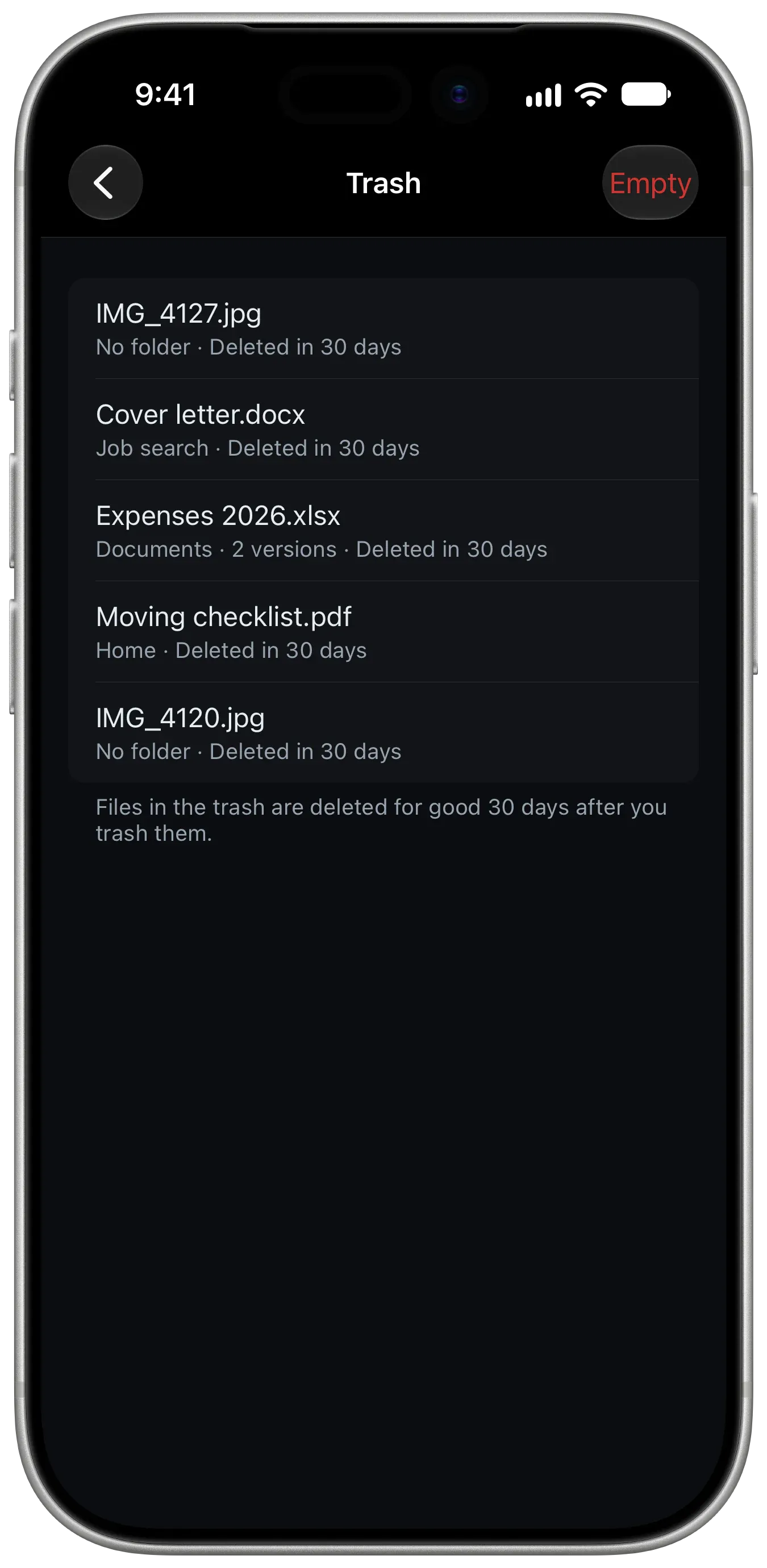
Each file in the Trash shows its folder and how long it has left.
Background uploads on Android
On Android, turn on Upload in the background, in the menu under Device, and uploads keep going on Wi-Fi with the app in the background or the phone locked. A notification shows while they run. It is off by default.
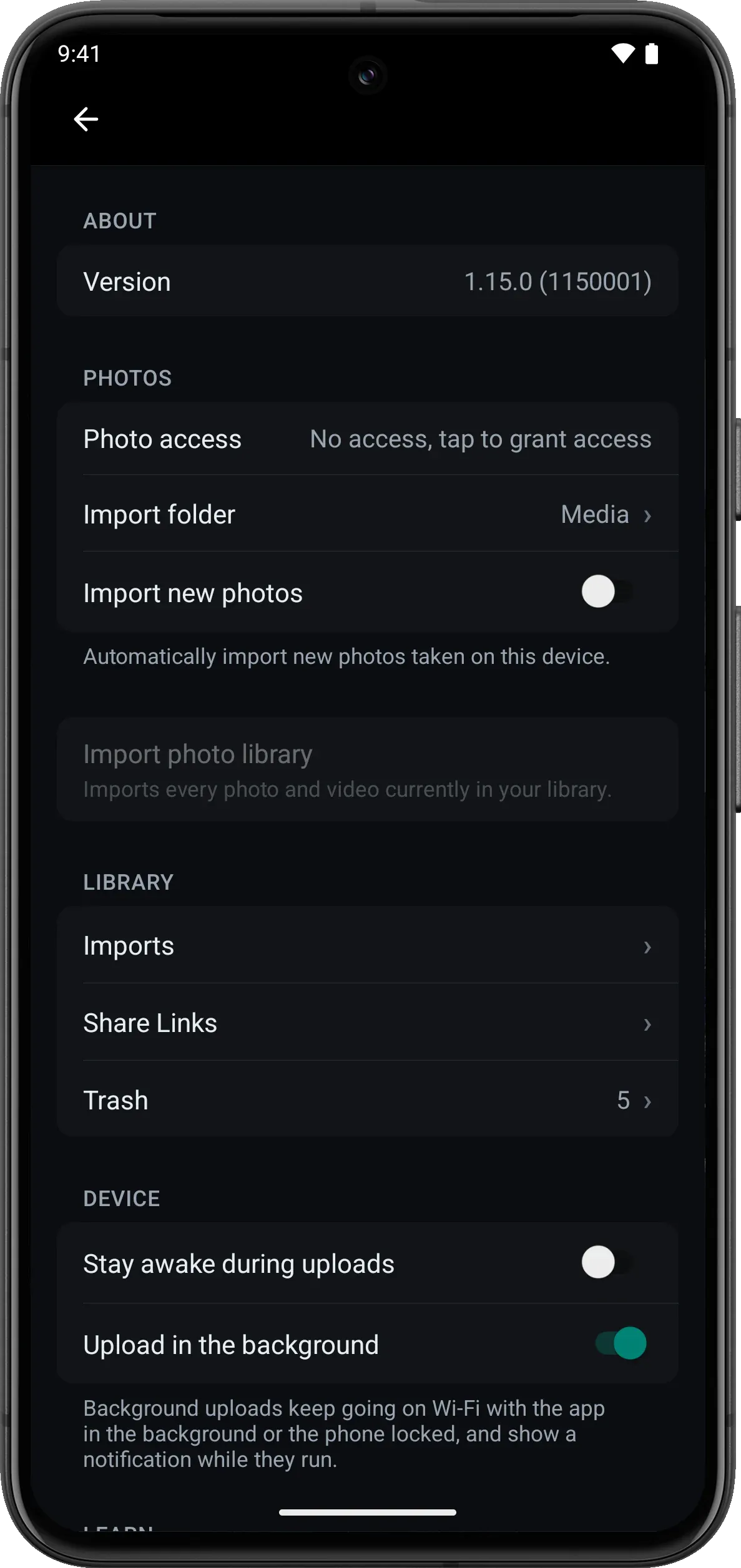
Upload in the background, under Device in the menu.
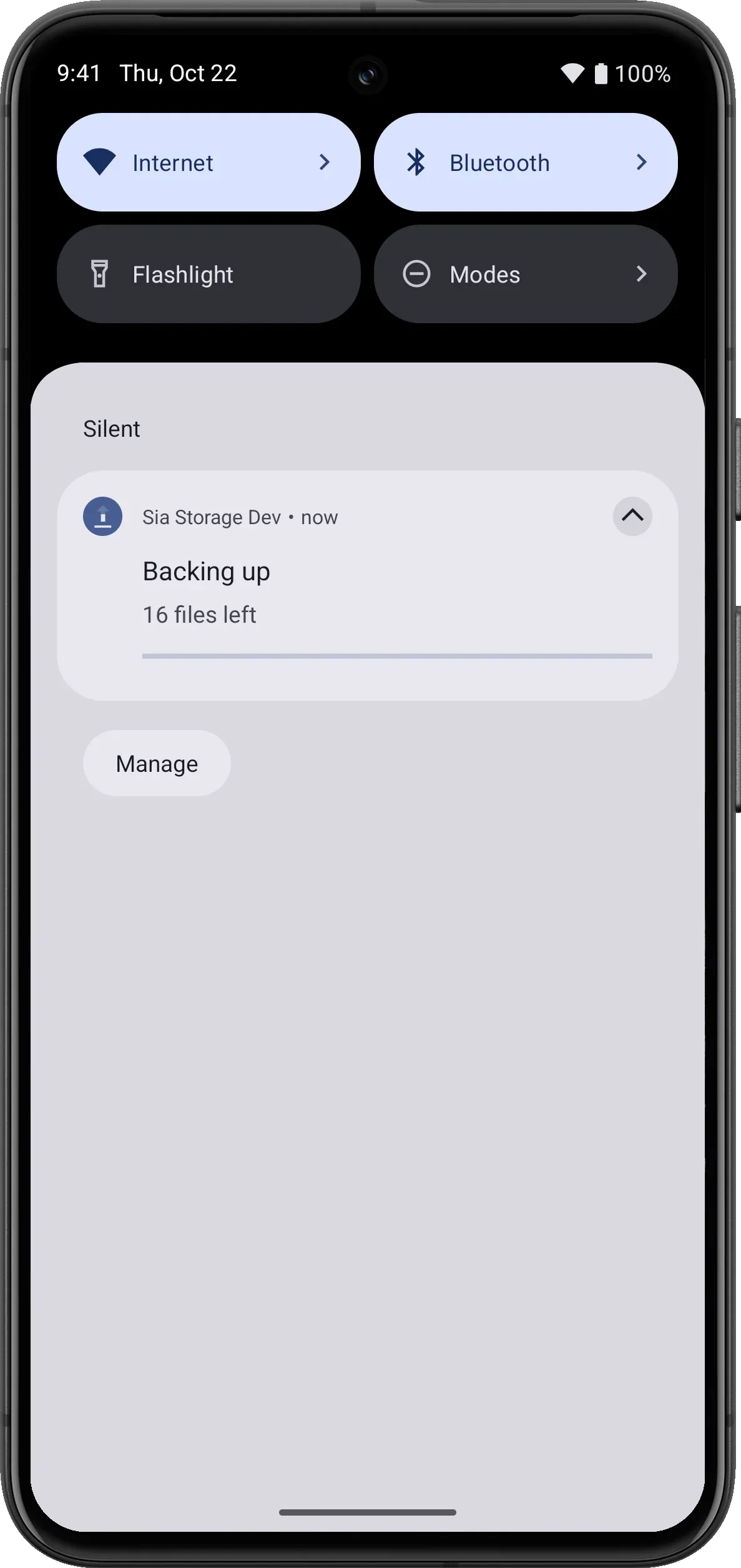
The notification while uploads run.
Stay awake during uploads, the setting that keeps the screen on while files upload, now dims the screen after a minute without a touch. A tap brings it back to full brightness.
Faster downloads
Opening a folder of photos while a video downloads no longer means waiting for the video. More downloads run at once, so small files don't wait behind large ones. An upload running in the background no longer slows your downloads, and file lists stay quick to load while photos import.
Downloads also use less memory and half the disk space they used to. If a file won't fit on your phone, the app tells you before it starts, and imports interrupted when you leave the app finish soon after you come back.
Uploads and downloads cope better when part of the network is slow or offline. The app moves on from a storage provider that stops responding within seconds instead of waiting more than a minute, and it uses less data checking in with the network.
The download button in the file viewer is larger, and shows whether a download is starting, waiting behind others, how much has arrived, or that it failed.
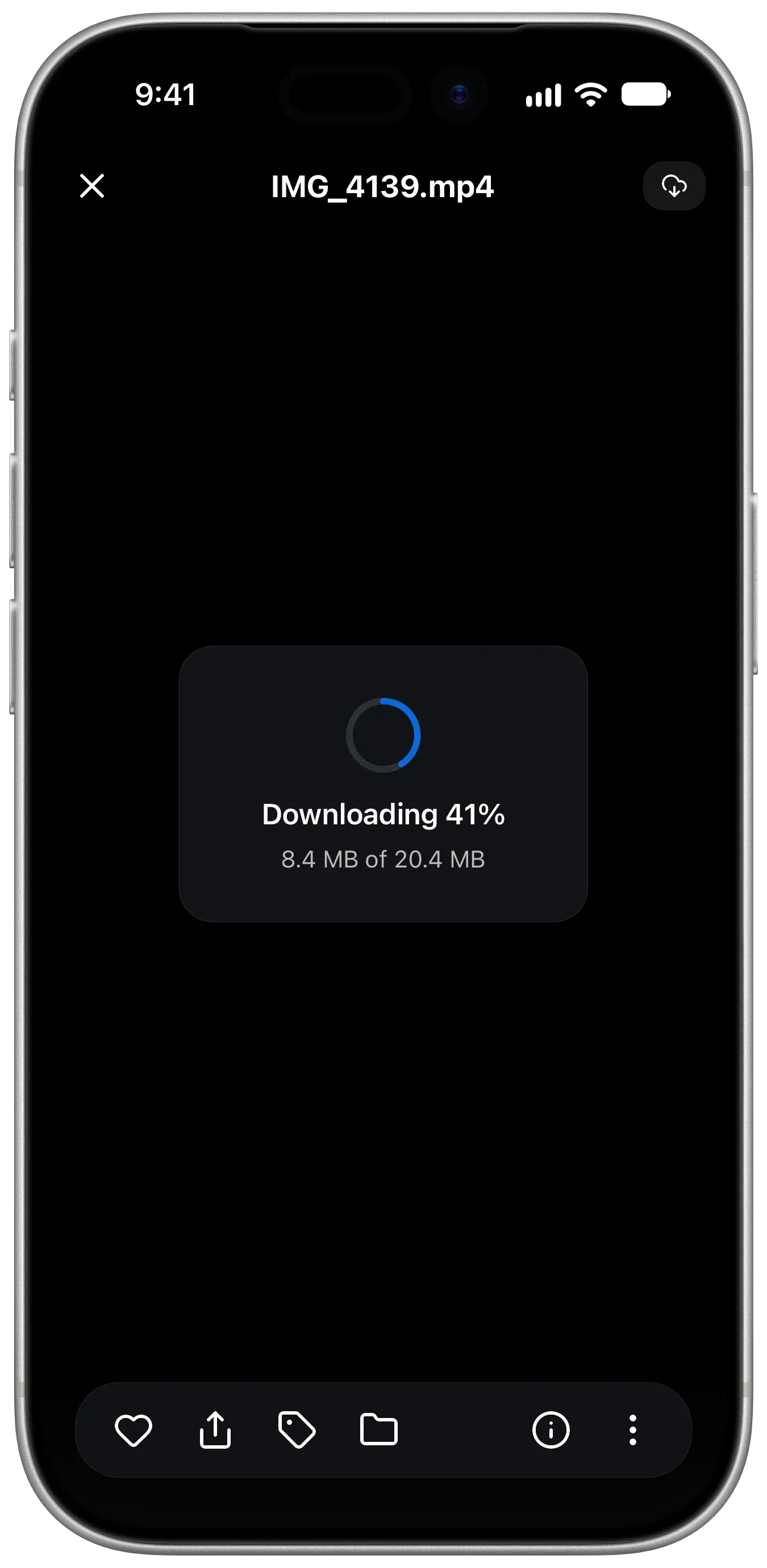
A video downloading in the file viewer.
The same library on every device
More of this release went into making a file look the same wherever it came from. A name with accents is stored the same way on every device, so the same file added from two devices shares one name and one version history. Camera raw photos such as DNG, CR2, NEF and ARW keep their raw type everywhere, and raw photos that were stored as TIFF get their type back the next time the app syncs. Canon CR3 photos are recognized from their contents.
These changes now reach your other devices too, where before they could stay on the phone that made them:
- Removing a file from Favorites.
- Moving a file out of a folder to the top level.
- Removing a file's last tag.
On the iPhone Duo
The app fits both of the iPhone Duo's screens. The photo grid adds columns on the inner screen, sheets keep their buttons clear of the side status bar, and menus close when the phone folds or unfolds.
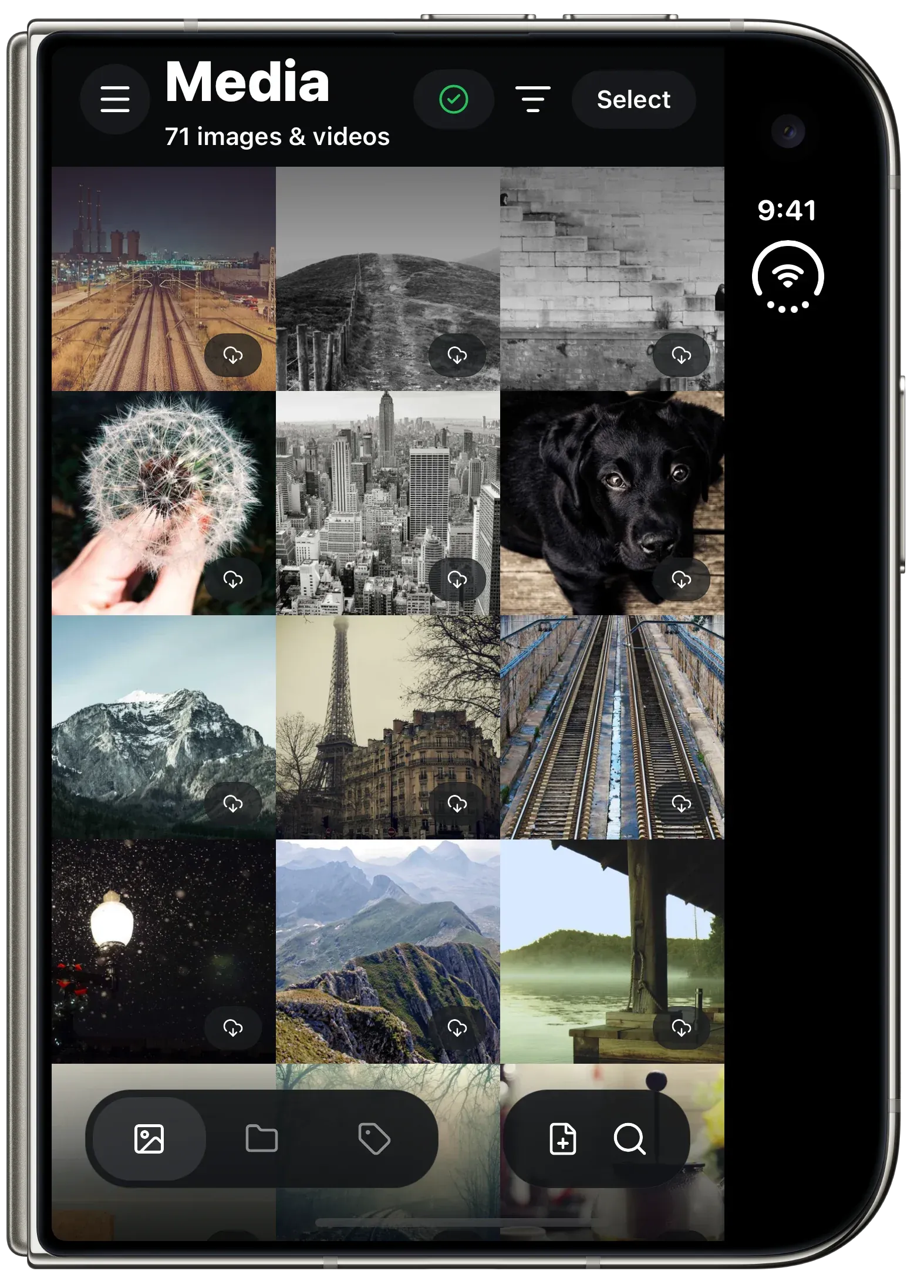
Folded, on the cover screen.
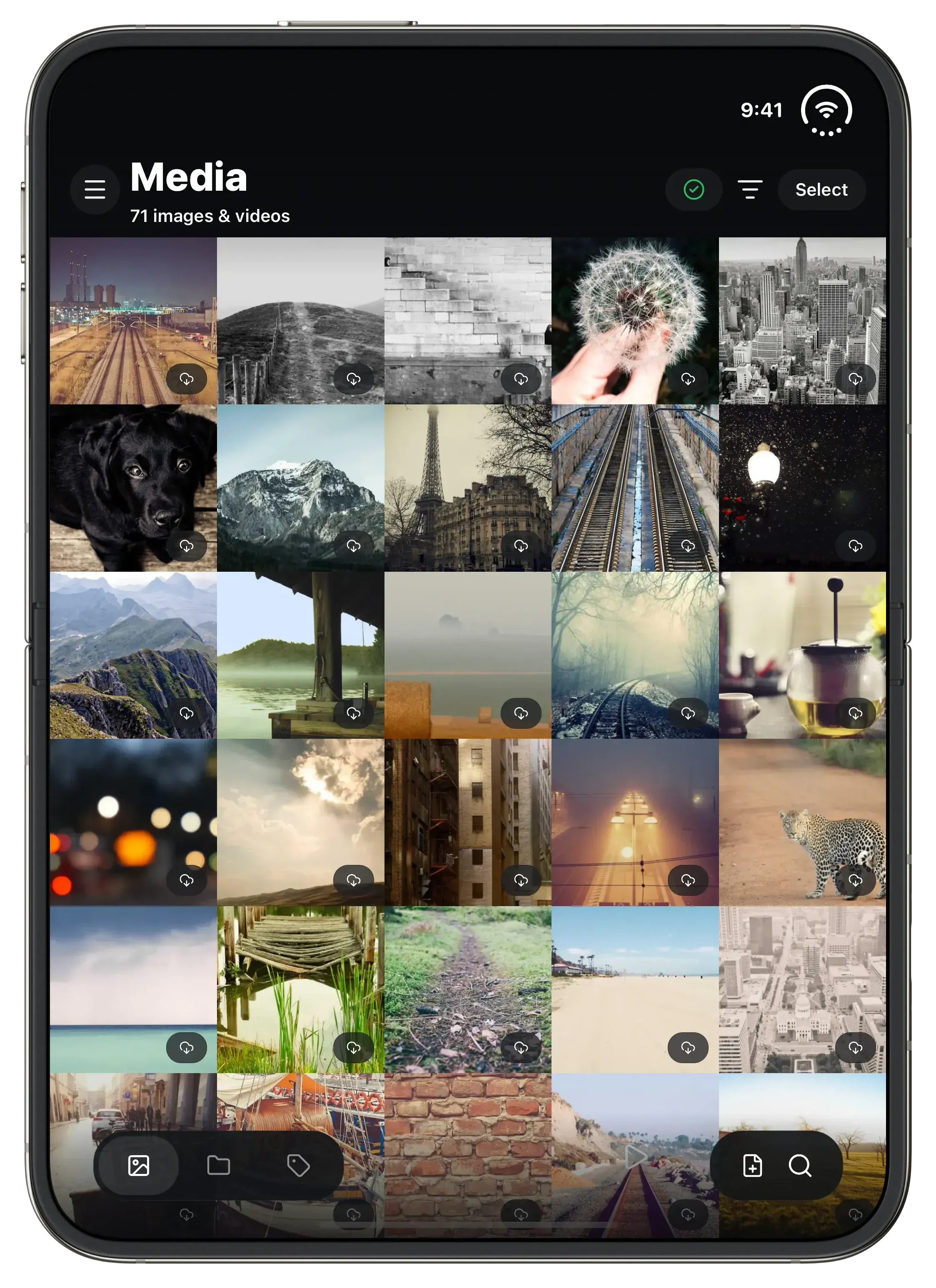
Open, on the inner screen.
Other changes
- VoiceOver and TalkBack read a name for every icon button and text field, such as the Media, Files and Tags tabs and the viewer's Share and More buttons, and VoiceOver can reach the options in action sheets.
- Swiping through photos opened from Media moves only through photos and videos, and no
longer stops on other files such as
.xmpsidecars. - Renaming a file from its details takes one tap on Rename instead of two.
- Picking an edited photo shows the format it will import as, rather than the format of the original stored beside it.
- Text, JSON and Markdown files no longer start under the viewer's header, and keep their text size in landscape.
- The journal mode setting under Advanced is removed.
Fixes
- New photos stopped importing on phones with a long photo library history.
- Thumbnails loaded one at a time while the app checked for new photos.
- The upload status never reached complete when the library held files that can't upload, such as photos no longer on the phone.
- A file that finished downloading while the list refreshed could show as not on the phone, or go back to queued in the viewer.
- A crash that could close the app right after it opened on Android.
- A crash while signing in.
- A crash when the app reopened its database while a query was still running.
- Files could upload with another file's contents when other files in the same upload could not be read.
- A file added while the app was checking for new uploads could upload twice.
- Background uploads stopped when a newer copy of a file with the same name arrived while the first was still uploading.
- A file still downloading could open as though it were complete, and a download that ended early could leave a partial file behind.
- A file whose contents did not match its extension, such as an edited raw photo that is really a JPEG, landed under Unavailable files instead of uploading.
- Files from your other devices did not appear on a phone that went to the background while syncing them.
- Clear local files under Advanced could delete a local copy that a file in the library still pointed at.
- Tapping a file already queued to download in the background did not always download it.
- Some files could fail to download after one of the providers storing them left the network.
- The app couldn't connect to some storage providers at all.
- Security updates to the app's encrypted connections.
Get the update
Sia Storage 1.15 is on the App Store and Google Play. On iPhone it now needs iOS 16.4 or later. To learn more about Sia Storage and sign up for your free 50 GB, visit sia.storage. If you have questions or feedback, come say hi on Discord.